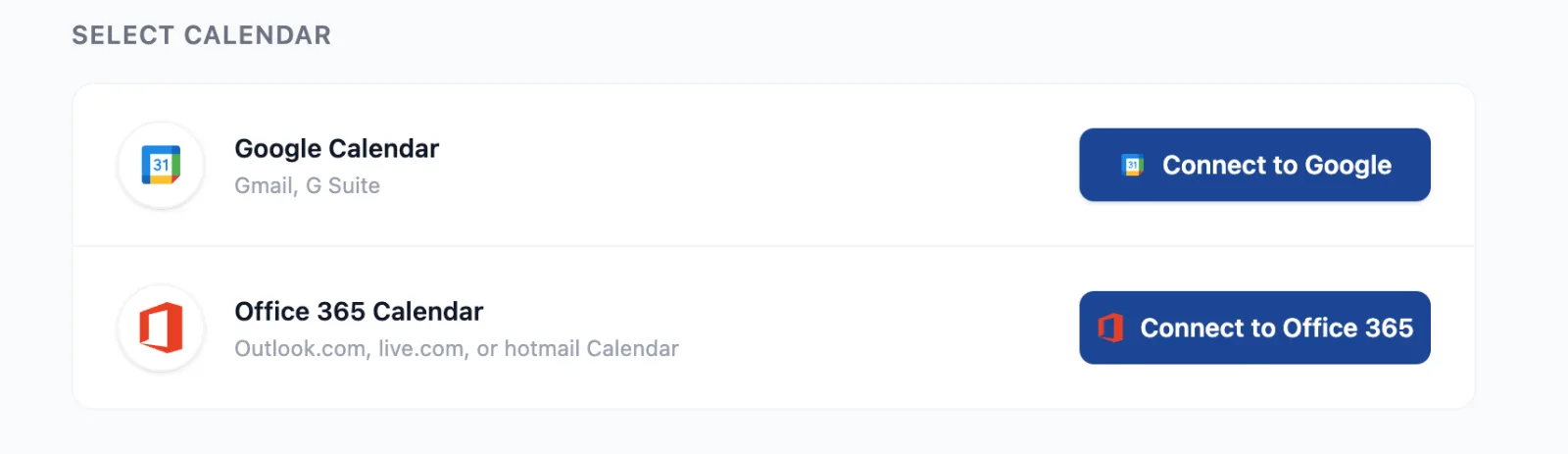
Until now, connecting a calendar to TimelyDo meant using Google. Office 365 and Outlook are now supported too, so your Microsoft calendar can keep your booking page accurate in exactly the same way.
Connect in about a minute
Go to Connected Calendars, select Connect on the Office 365 card, and approve access on Microsoft's own screen. Personal accounts on outlook.com, live.com and hotmail all work, and so do Microsoft 365 work and school accounts. You can connect more than one calendar and keep them all in step.
Your existing events block your time
Everything already in your Outlook calendar stops people booking over it, so your booking page only ever offers time you genuinely have. TimelyDo follows the same rules Outlook does:
- An invitation you declined leaves the slot open, because you are not going.
- An event you set to Free does not block your time, so you can keep a note in your calendar without losing the slot.
- A cancelled event frees the time again straight away.
Nobody booking with you ever sees what your events are. Your page shows which times are free and nothing else.
New bookings land in your calendar
When somebody books, the booking is added to the calendar you picked for that event type, with them invited as a guest. Cancel the booking and the event comes back off your calendar again. Different event types can write to different calendars, so work and personal stay apart.
See where every event came from
Your calendar now marks each event with the logo of the calendar it belongs to, so a Google event and an Outlook event are never in doubt. Open any event to see its time, location, guests and description, with a link straight back to Outlook when you need to change something there.
A few things are still Google only
Answering an invitation and dragging an event to a new time work for Google events today, and not yet for Office 365 ones. Do either in Outlook and the change reaches TimelyDo within seconds. For now only the main calendar of an Office 365 account syncs, while a Google account also brings its shared and secondary calendars.
Step by step guides
Both providers now have a full guide in the help center: Connect Office 365 and Connect Google Calendar. Each covers connecting, what blocks your availability, syncing, pausing a calendar and disconnecting.