TimelyDo provides meetings, which are collaborative and interactive online events to strengthen team bonds and foster teamwork among team members. The session will be conducted through a virtual meeting platform, such as Google Meet, Zoom, Phone number, and more. An experienced team-building expert will facilitate it.
Note:You have entered your valid credentials and your internet connection is working properly.
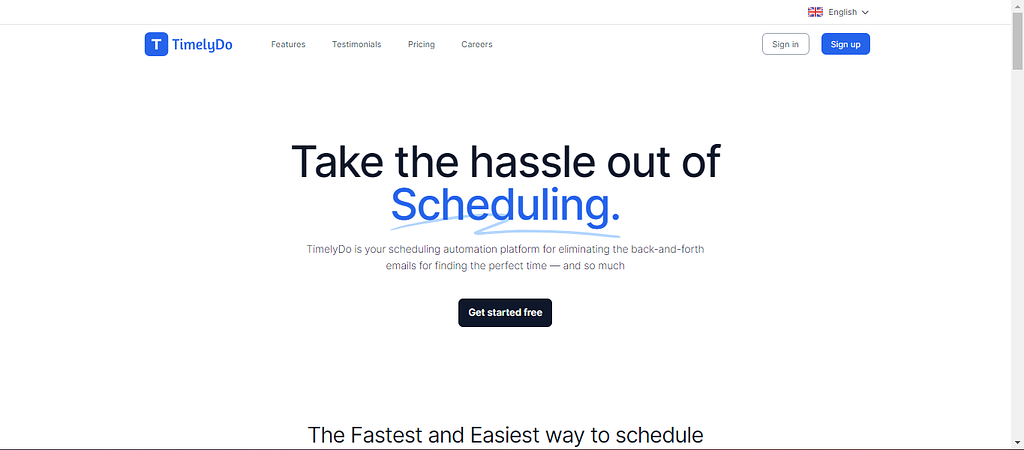
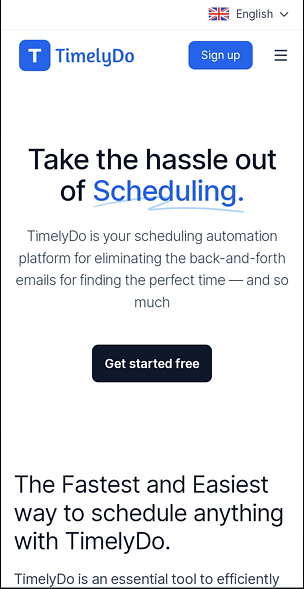
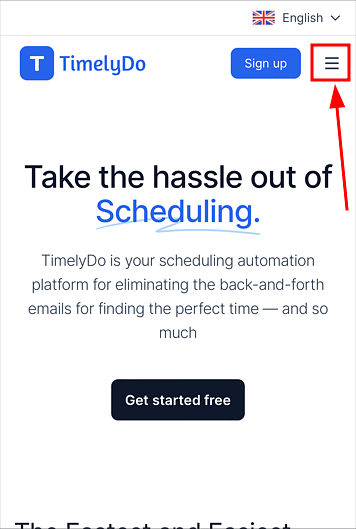
After registering or signing up for TimelyDo, click on the link (https://timelydo.com/) that will take you directly to the TimelyDo website to sign in. Please follow the instructions provided below:
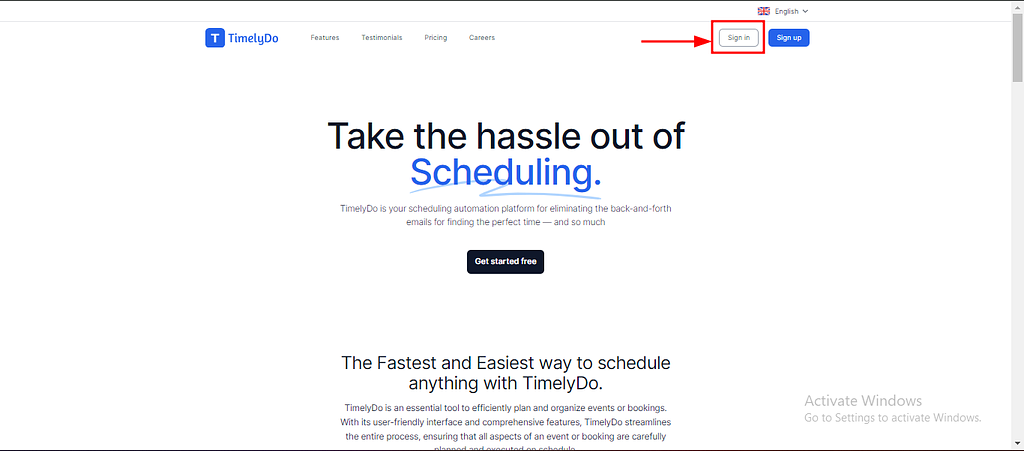
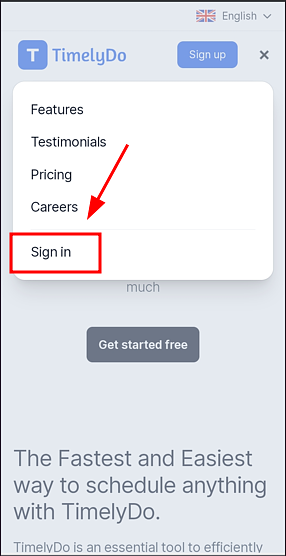
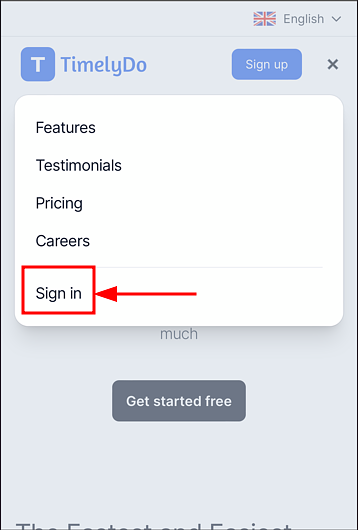
signup_on_timelydo____title___how_to_signup_on_timelydo____alt___signup_on_timelydo____picture.png.png52 KB2. Click on 'Sign in' button on the Top Right of the landing page.
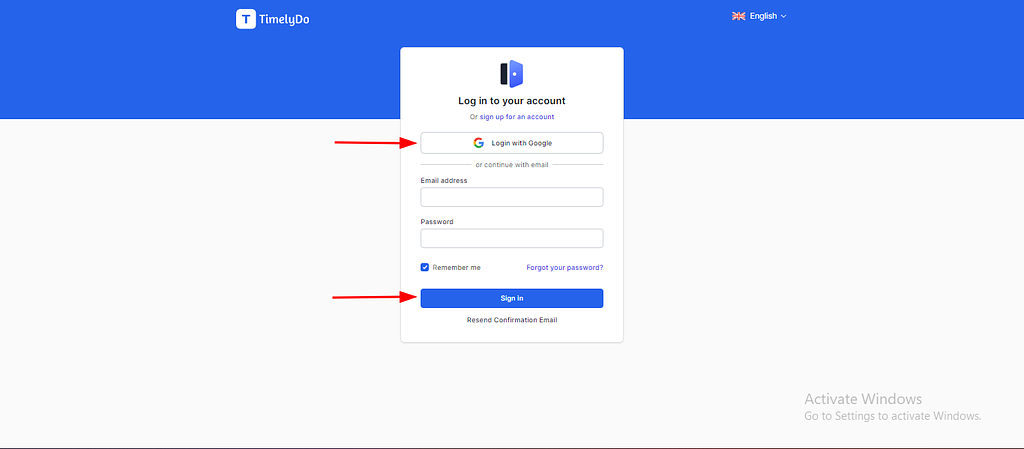
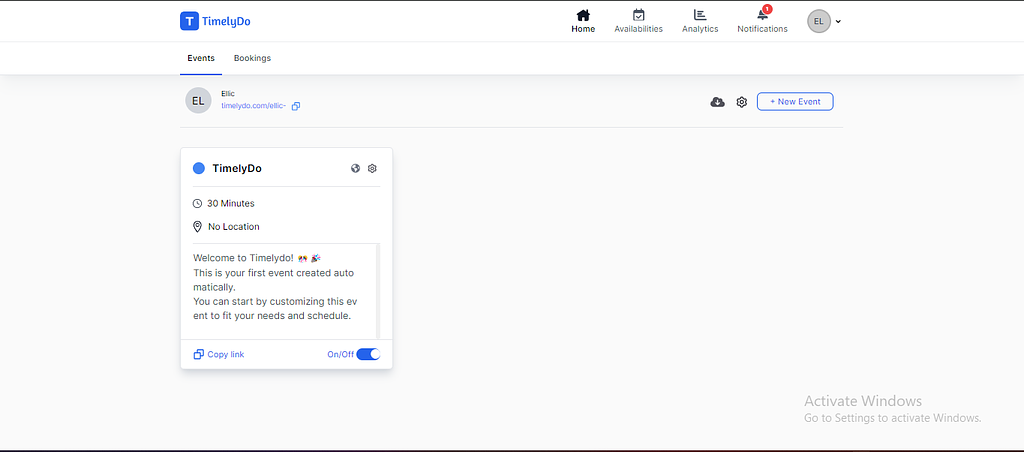
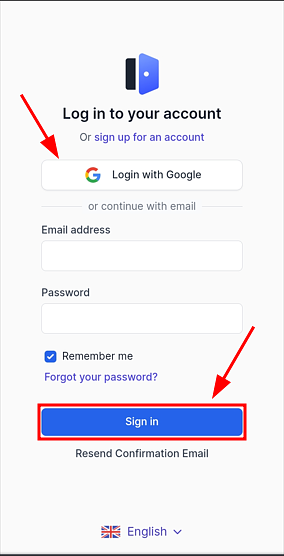
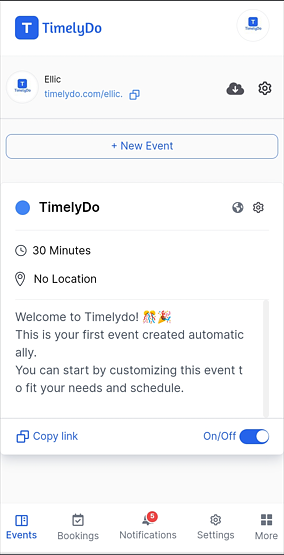
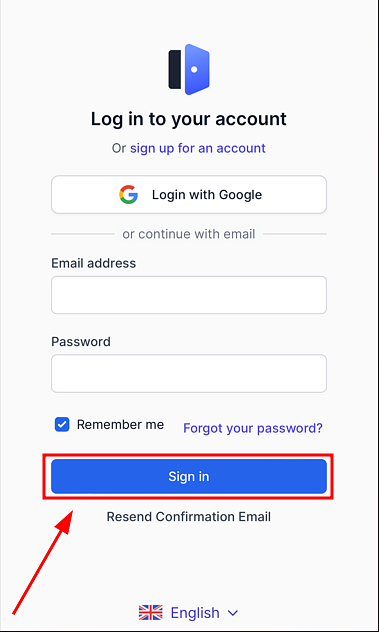
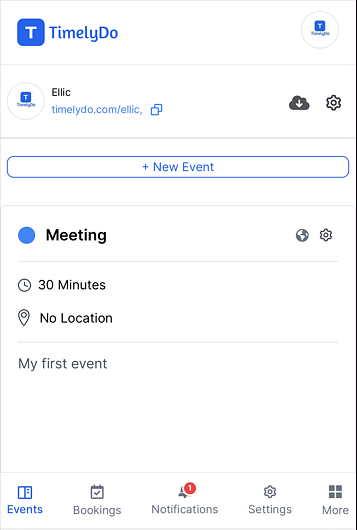
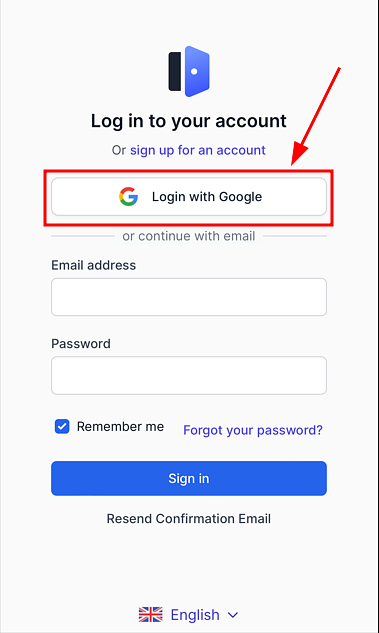
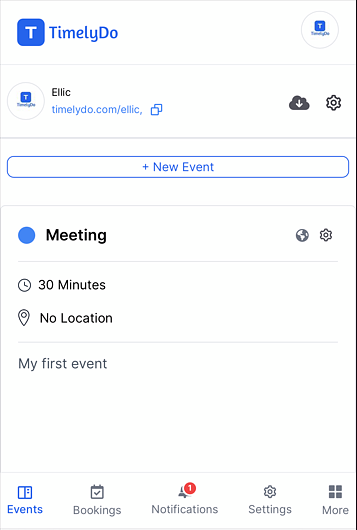
3. When you click on 'Sign in' where you can "Signin with Google", or you can sign in manually by adding your "Email address" and "Password". sigining_in_on_timelydo____title___how_to_signin_on_timelydo____alt___signining_on_timelydo____picture.png28.3 KB4. After adding the valid "Email" and "Password", click on the "Sign-in" button, and you will be directly logged into the dashboard and notification will also be displayed on your dashboard.timelydo____title___dashboard_of_timelydo____alt___timelyd_dashboard____picture.png.png45.4 KB Login with Google: 7. Click on 'Log in with Google'. 8. You can also log in with your Google account, which means you will not have to enter your email or password. When you click 'Login with Google', select the Google account you want to use for login, and you will be logged in automatically.
9. As soon as you sign up by clicking on 'Login with Google', you will be directly logged into the dashboard and notification will also be displayed on your dashboard.timelydo____title___dashboard_of_timelydo____alt___timelyd_dashboard____picture.png.png45.4 KB
Note: Make sure to review the changes before saving to ensure all information is accurate and up-to-date. Simply said, that is everything! Here are the instructions to Sign-in according to your preference.You're free to visit our knowledge base to learn more about TimelyDo's services and get in touch with us directly through Contact Usif you have any more questions.
TimelyDo provides meetings, which are collaborative and interactive online events to strengthen team bonds and foster teamwork among team members. The session will be conducted through a virtual meeting platform, such as Google Meet, Zoom, Phone number, and more. An experienced team-building expert will facilitate it.
Note:You have entered your valid credentials and your internet connection is working properly.
After registering or signing up for TimelyDo, click on the link (https://timelydo.com/) that will take you directly to the TimelyDo website to sign in. Please follow the instructions provided below:
landingpage_on_timelydo____title___landingpage_on_timelydo____alt___landingpage_on_timelydo____picture.png71 KB2. Click on 'Sign in' button on the Top Right of the landing page.
3. When you click on 'Sign in' where you can "Signin with Google", or you can sign in manually by adding your "Email address" and "Password". sigining_in_on_timelydo____title___how_to_signin_on_timelydo____alt___signining____picture.png.png36.8 KB4. After adding the valid "Email" and "Password", click on the "Sign-in" button, and you will be directly logged into the dashboard and notification will also be displayed on your dashboard.sigining_in_on_timelydo____title___how_to_signin_on_timelydo____alt___signining_on_timelydo____picture.png48.2 KB Login with Google: 7. Click on 'Log in with Google'. 8. You can also log in with your Google account, which means you will not have to enter your email or password. When you click 'Login with Google', select the Google account you want to use for login, and you will be logged in automatically.
9. As soon as you sign up by clicking on 'Login with Google', you will be directly logged into the dashboard and notification will also be displayed on your dashboard.sigining_in_on_timelydo____title___how_to_signin_on_timelydo____alt___signining_on_timelydo____picture.png48.2 KB
Note: Make sure to review the changes before saving to ensure all information is accurate and up-to-date. Simply said, that is everything! Here are the instructions to Sign-in according to your preference.You're free to visit our knowledge base to learn more about TimelyDo's services and get in touch with us directly through Contact Usif you have any more questions.
TimelyDo provides meetings, which are collaborative and interactive online events to strengthen team bonds and foster teamwork among team members. The session will be conducted through a virtual meeting platform, such as Google Meet, Zoom, Phone number, and more. An experienced team-building expert will facilitate it.
Note:You have entered your valid credentials and your internet connection is working properly.
After registering or signing up for TimelyDo, click on the link (https://timelydo.com/) that will take you directly to the TimelyDo website to sign in. Please follow the instructions provided below:
sigining_in_on_timelydo____title___how_to_signin_on_timelydo____alt___signining____picture.png52.4 KB2. Click on 'Sign in' button on the Top Right of the landing page.
3. When you click on 'Sign in' where you can "Signin with Google", or you can sign in manually by adding your "Email address" and "Password". signin____title___how_to_signin_on_timelydo____alt___signin_on_timelydo____picture.png44 KB4. After adding the valid "Email" and "Password", click on the "Sign-in" button, and you will be directly logged into the dashboard and notification will also be displayed on your dashboard.create_event____title___how_to_create_event_on_timelydo____alt___create_event____picture.png34 KB Login with Google: 7. Click on 'Log in with Google'. 8. You can also log in with your Google account, which means you will not have to enter your email or password. When you click 'Login with Google', select the Google account you want to use for login, and you will be logged in automatically.
9. As soon as you sign up by clicking on 'Login with Google', you will be directly logged into the dashboard and notification will also be displayed on your dashboard.create_event____title___how_to_create_event_on_timelydo____alt___create_event____picture.png34 KB
Note: Make sure to review the changes before saving to ensure all information is accurate and up-to-date. Simply said, that is everything! Here are the instructions to Sign-in according to your preference.You're free to visit our knowledge base to learn more about TimelyDo's services and get in touch with us directly through Contact Usif you have any more questions.